


Game lag can make gaming frustrating. Your game may freeze, stutter, or respond late. You may also notice sudden FPS drops during gameplay. Online games can have another problem called high ping.
If you are wondering how to fix game lag, first find the cause. Your PC, graphics settings, internet, drivers, or temperature may be responsible. Luckily, many gaming problems are easy to fix.
What Causes Game Lag?
Game lag can happen for many reasons. For example, your PC may not have enough power for a game. Your graphics settings may also be too high.
Background apps can use CPU, RAM, and GPU resources. As a result, your game may lose performance. An old graphics driver can also cause problems.
Online games have extra causes. A weak Wi-Fi signal can increase ping. Network traffic can also make your connection unstable. In some cases, the game server may have problems.
Overheating is another common cause. When your CPU or GPU gets too hot, it may slow down. Therefore, your FPS can drop during longer gaming sessions.
How to Fix Game Lag on PC
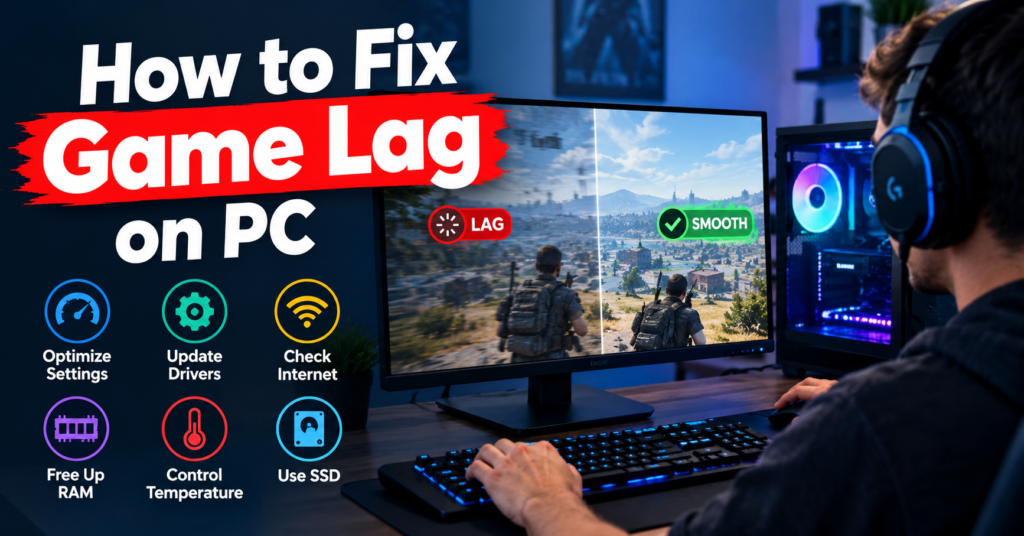
Start with the simple fixes. First, close apps that you do not need. Web browsers, video editors, launchers, and other programs can use system resources.
Next, open Windows Task Manager. Check your CPU, memory, and GPU usage. If another program is using too many resources, close it before starting your game.
Also, restart your PC. A restart can clear temporary processes and free memory. Therefore, it can sometimes fix small performance problems.
Lower Your Graphics Settings
High graphics settings can put a lot of stress on your GPU. If your game has low FPS, try lowering the graphics quality.
Start with shadows and reflections. These settings can use a lot of GPU power. You can also lower view distance and anti-aliasing.
Next, check the game resolution. A lower resolution can increase FPS because your GPU has fewer pixels to render.
However, you do not need to set everything to Low. Try changing the most demanding settings first. This way, you can keep good image quality while getting smoother gameplay.
Update Your Graphics Driver
Your graphics driver helps Windows communicate with your GPU. An old driver can sometimes cause gaming problems. It can also create compatibility issues with newer games.
Therefore, check for a driver update from your graphics card manufacturer. NVIDIA, AMD, and Intel regularly release new drivers.
After updating the driver, restart your PC. Then, open your game and check the performance again.
If the problem started after a driver update, the new version may be causing the issue. In that case, check the manufacturer’s support information for a possible fix.
Check Your Internet Connection
High ping is a common reason for lag in online games. You may see your character move late or return to an earlier position. This is often called rubber-banding.
First, check your internet connection. Then, look at your ping while playing. A stable connection is more important than having very high download speed.
Wi-Fi can also cause problems. This is especially true when your PC is far from the router. Walls and other devices can weaken the signal.
Therefore, try using an Ethernet cable if possible. A wired connection can provide a more stable gaming connection.
How to Reduce Ping in Online Games
There are several simple ways to reduce network-related lag. First, stop large downloads while playing. Also, close apps that use a lot of internet data.
For example, cloud backups and video streams can use your connection. Other people using the same network can also increase network traffic.
Next, choose a nearby game server. Many online games let you select a server region. A nearby server can often provide lower latency.
You can also restart your router. This may solve temporary connection problems. However, if high ping continues across several games, contact your internet provider.
Check Your PC Temperature
Heat can affect gaming performance. When your CPU or GPU becomes too hot, it may lower its speed. This process helps protect the hardware.
As a result, your FPS may drop. You may also notice stuttering during long gaming sessions.
Therefore, check your CPU and GPU temperatures while playing. Make sure your PC has good airflow.
Also, check your fans and air vents. Dust can block airflow and increase temperatures. Cleaning the PC can help if dust is causing the problem.
Check the Game Requirements
Every PC game has system requirements. These requirements show the hardware needed to run the game.
First, check the minimum requirements. Then, compare them with your PC. If your hardware is below the minimum, the game may struggle to run.
The recommended requirements are also useful. They can give you a better idea of the hardware needed for smoother gameplay.
However, meeting the recommended requirements does not always mean you will get the same FPS in every situation. Game settings, resolution, drivers, and background apps can also affect performance.
Free Up Storage Space
Your storage drive can also affect general PC performance. A drive with very little free space may cause problems.
Therefore, remove apps and files that you no longer need. You can also clear temporary Windows files.
If your game is installed on an SSD, loading times can be much faster than on an older hard drive. However, an SSD does not automatically fix high ping or low FPS.
So, use an SSD mainly for faster loading and smoother storage performance.
Use Windows Game Mode
Windows has a Game Mode feature designed for gaming. It can help Windows focus more on your game while you are playing.
You can also check your startup apps. Some programs start automatically when Windows loads. These apps can use system resources in the background.
Therefore, disable startup apps that you do not need. Also, keep Windows updated for better compatibility.
However, if a problem starts after a Windows update, check for other reports first. A recent update may sometimes create a temporary compatibility issue.
Disable Unnecessary Overlays
Overlays can be useful while gaming. They can show messages, FPS, recording controls, and other information.
However, several overlays can use extra system resources. Discord, game launchers, and graphics software may all have overlay features.
Therefore, try turning off overlays if your game starts to stutter. Test the game again after disabling them.
Screen recording can also affect performance. If your PC is not very powerful, reduce recording quality or turn off background recording.
Why Is My Game Still Lagging?
Sometimes the usual fixes do not solve the problem. In that case, look closely at what happens during the lag.
For example, does your FPS suddenly fall? Does your character move late? Does the game freeze for a few seconds? Each problem can have a different cause.
Next, try another game. If only one game has problems, the issue may be related to that game. Check its settings, updates, and files.
If every game has the same problem, look at your PC instead. Check temperatures, drivers, RAM, GPU usage, and CPU usage.
You can also monitor your FPS and ping while playing. This can help you find the main cause of the lag.
Can Background Apps Cause Game Lag?
Yes, background apps can affect gaming performance. Some programs use CPU, RAM, GPU, or internet resources.
For example, a web browser with many open tabs can use a lot of memory. Video editing software can also use significant system resources.
Therefore, close unnecessary apps before gaming. This simple step can give your game more resources.
How to Fix Game Lag Without Upgrading Your PC
You do not always need new hardware. First, lower your graphics settings. Then, close background apps and update your drivers.
Next, check your PC temperature. Also, make sure your game is running at a suitable resolution.
For online games, focus on your internet connection. Use Ethernet when possible and stop large downloads during gameplay.
These steps can improve performance without spending money. However, very demanding games may still need better hardware.
Conclusion
Learning how to fix game lag starts with finding the real cause. Low FPS usually points to a PC performance problem. High ping, on the other hand, usually points to a network problem.
Start with simple solutions. Close background apps, lower graphics settings, update your drivers, and check your temperatures. Also, test your internet connection if you play online games.
Finally, monitor your FPS and ping. This can show whether the problem comes from your PC or your network. With the right changes, you can often enjoy smoother gaming without buying a new computer.
FAQs
Why is my game lagging even with good internet?
Good internet speed does not always mean low ping. Your connection may still be unstable. A distant game server can also increase latency. Therefore, check your ping and connection stability while playing.
How do I fix game lag on a low-end PC?
Lower the graphics settings first. Also, reduce the resolution and close background apps. Next, update your graphics driver and check your PC temperature. These steps can improve performance on many low-end PCs.
Does lowering graphics reduce game lag?
Yes, lowering graphics can improve FPS. Your GPU has less work to do. However, graphics settings will not fix high ping caused by your internet connection.
Can Wi-Fi cause game lag?
Yes, Wi-Fi can cause gaming problems. A weak signal or busy network can increase ping. Therefore, use an Ethernet cable if you can. A wired connection is often more stable.
How can I reduce ping while gaming?
Start by closing apps that use your internet. Stop large downloads and cloud backups while playing. Next, choose a nearby game server if possible. You can also restart your router.
Can overheating cause game lag?
Yes, overheating can reduce gaming performance. A hot CPU or GPU may lower its speed. As a result, your FPS can drop. Check temperatures and make sure your PC has good airflow.
For more updates visit: DAILY FRONT

Other Articles

Chad Gilbert Life, Career, Family, Music and Legacy
Best Games for Low End PC Great Games That Run Smoothly



No Comment! Be the first one.