


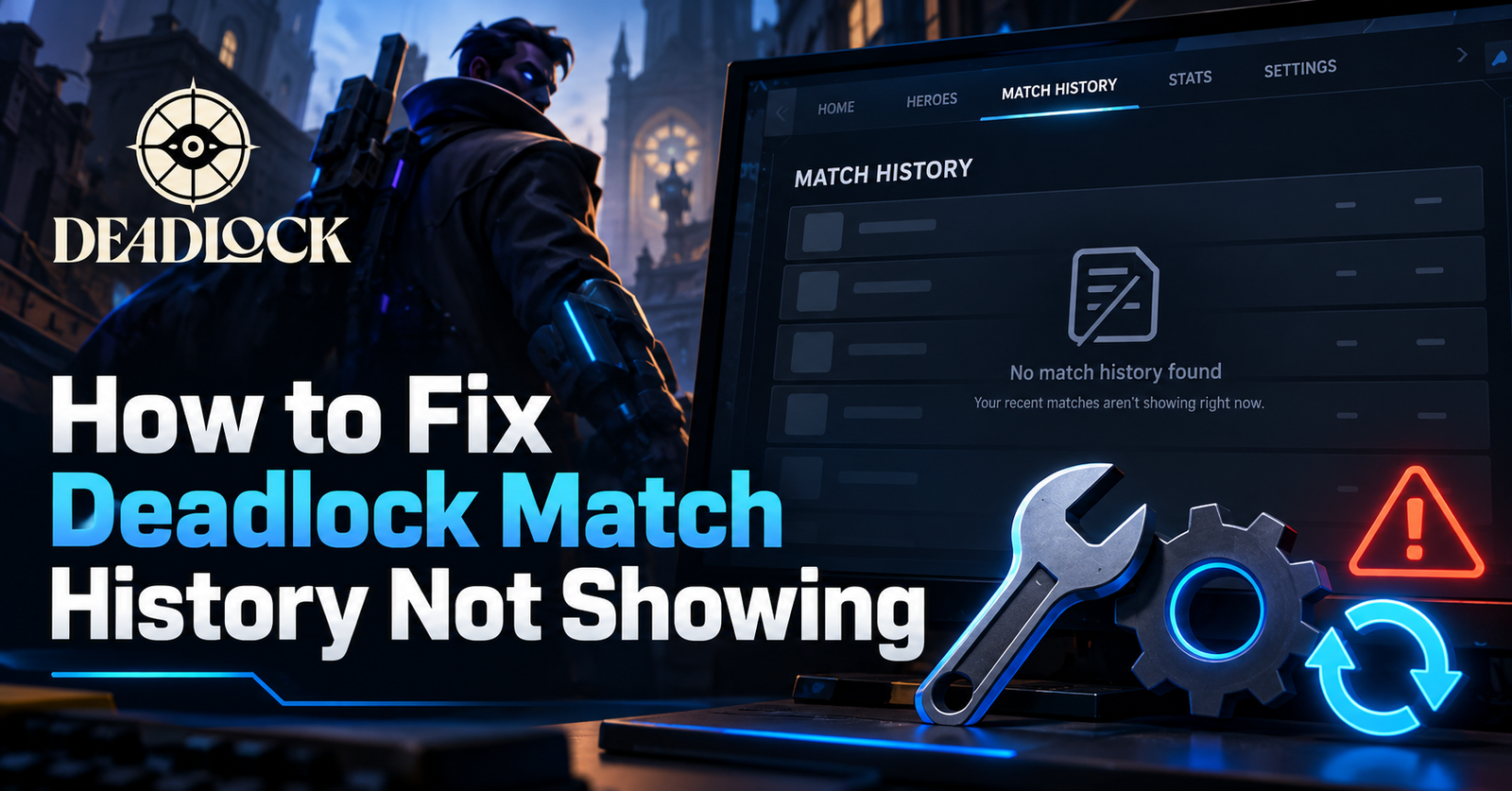
Looking for a Deadlock match history not showing fix? First, restart Deadlock and Steam. Then, open your match history and select the All Matches filter. If your games still do not appear, check for updates and verify your game files through Steam. Sometimes, Valve’s servers or a game bug cause the problem. In that case, you may need to wait for a fix.
However, the right solution depends on what you see. Your match list might be blank, show old results, or fail to load certain games.
This guide explains the main causes and shows you how to fix each issue.
Why Is Deadlock Match History Not Showing?
Deadlock match history may stop working because of a game bug, server issue, or incorrect filter. Sometimes, recent matches fail to appear even though the game runs normally.
Deadlock is still in development, so updates can also affect how match records appear.
Deadlock Server Problems
Deadlock needs access to match data to display your past games. If that data is unavailable, your history may fail to load.
For example, a server problem could leave your match list blank. You might also see older games but not your latest results.
In this case, changing your PC settings may not help. Instead, check whether other players report the same issue.
Match History Filter Bugs
A match filter can also cause missing results.
Players have reported a bug where the All Matches page stops updating when another filter is active. Meanwhile, their profile history continues to show newer matches.
Therefore, checking your filters is one of the easiest things to try.
Game Updates and Loading Errors
Sometimes, Deadlock updates introduce problems with the match history screen.
For example, players have reported losing access to match history and replays after an update. Others have seen errors when loading older match details.
However, these reports do not mean every update causes problems. They simply show why checking for known bugs can help.
How to Fix Deadlock Match History Not Showing
Start with the simplest solutions before changing any game files. These steps may fix common loading issues without affecting your settings.
1. Restart Deadlock and Steam
A full restart can clear temporary problems with the game client.
First, close Deadlock completely. Then, exit Steam rather than leaving it running in the background.
Open Steam again and launch Deadlock. Once the game loads, visit your profile and check the match history page.
If your recent matches appear, no further action is needed.
However, if the page remains blank, try the next solution.
2. Reset the Match History Filter
An incorrect or faulty filter may hide newer matches.
Open Deadlock and visit the match history screen. Next, look for the match filter options.
Select All Matches if that option is available. Then, return to your profile and check whether recent games appear.
This step is especially useful when your profile shows matches that the full history page does not.
Also, switch away from any active hero or mode filters before checking again.
3. Check for Deadlock Updates on Steam
An older game version may contain a bug that a newer patch has fixed.
Open Steam and find Deadlock in your Library. If Steam shows an available update, install it.
Afterwards, restart the game and check your match history.
You can also read the latest patch notes to see whether Valve has addressed a known issue.
However, do not assume that every update includes a match history fix.
4. Verify Deadlock Game Files
Steam can check whether Deadlock’s installed game files are missing or damaged.
Open your Steam Library and right-click Deadlock. Next, select Properties and open Installed Files.
Choose Verify integrity of game files. Steam will then check the installed files and replace any that need repair.
Once the process finishes, launch Deadlock again.
This may help with damaged local files. However, it cannot repair missing match records on Valve’s servers.
5. Check Your Internet Connection
A poor connection can make online game features harder to load.
First, confirm that Steam is connected. Then, check whether other online features work normally.
If your connection seems unstable, restart your router or try a different trusted network.
Also, disable any VPN or proxy temporarily if you use one. This can help identify connection-related problems.
However, avoid changing advanced network settings unless you know what they do.
6. Check Whether Other Players Have the Same Problem
If several players report missing match history, the issue may affect the game itself.
Check Deadlock’s official community forums and Steam discussions. Look for reports that match your symptoms.
For example, search for blank match history, missing recent games, or replay loading errors.
If other players report the same problem after an update, a game-side bug becomes more likely.
In that situation, waiting for an official fix may be the safest option.
Deadlock Recent Matches Not Showing After Playing
Sometimes, your match history works normally but fails to show your latest game.
First, return to the main menu after finishing the match. Then, reopen your profile and select All Matches.
If nothing changes, restart Deadlock and check again.
A match played close to a game update may also fail to load correctly. Players have reported this type of problem on the official Deadlock forums.
However, a missing entry does not prove that the match has been deleted.
If possible, save the match ID for future troubleshooting.
How to Fix Deadlock Match History Stuck on Loading
A loading screen that never finishes may point to a connection problem or game bug.
Start by restarting Deadlock and Steam. Then, confirm that both applications have the latest available updates.
Next, verify your installed game files.
If the problem continues, check whether Deadlock’s other online features work.
You should also look for an error message. For example, some players have reported a failed match metadata download error.
That message suggests the game could not retrieve the information needed to open a match.
Therefore, keep the exact error text when reporting the issue.
Deadlock Match History Missing After an Update
Deadlock updates can change the game interface and how certain features work.
If your history disappears immediately after an update, first check whether the match history screen has changed.
Next, reset your filters and restart the game.
If the problem remains, look for similar reports from other players.
Avoid reinstalling Deadlock straight away. Reinstallation takes longer and may not solve a server-related bug.
In fact, one player reported that reinstalling restored access only for the problem to return later.
Therefore, reinstalling should be a last resort rather than your first solution.
Can You Recover Missing Deadlock Match History?
You may be able to view some missing matches through another record source. However, recovery depends on whether the match data still exists and remains accessible.
Check Your In-Game Profile
First, compare your profile’s recent matches with the full match history page.
If a match appears in your profile but not the full list, the problem may involve how the history screen displays results.
In this case, resetting filters is worth trying again.
Check Deadlock Tracking Websites
Community tracking services may display matches that are missing from your in-game history.
However, these websites depend on the match data they can access. Therefore, their records may also contain gaps.
Some services use community data sources rather than a complete official match database.
Also, use caution when connecting accounts or installing third-party tools.
Never share your Steam password with an unofficial tracking service.
Report Missing Matches to Valve
If a match remains missing, report the problem through Deadlock’s official feedback channels.
Explain whether the entire history page is blank or only certain games are missing.
Also, include the match ID if you have it. Mention any error message and whether the problem started after an update.
These details make your report more useful.
Deadlock Match History Not Showing Older Games
Missing older games may have a different cause from missing recent matches.
Players have reported that some matches from more than a year earlier no longer appear in the game.
However, these reports do not confirm a universal one-year history limit.
Older matches may still appear through some community tracking services, although access varies.
Also, remember that match history and replay availability are separate features.
A game may appear in your records even when its replay is no longer available.
Therefore, a missing replay does not always mean your match history is broken.
How to Prevent Deadlock Match History Problems
You cannot prevent every Deadlock bug. However, a few simple habits can make future issues easier to manage.
Keep Steam and Deadlock updated. Also, check your history regularly, especially after large patches.
If you want to review an important match later, save its match ID when available.
You can also keep screenshots of key results.
However, avoid deleting game folders or Steam cache files without a clear reason. Such changes may cause new problems without restoring your history.
Conclusion
The best Deadlock match history not showing fix is to restart the game, reset your match filters, and check for updates. If needed, verify the game files through Steam.
However, missing records can also result from server issues or Deadlock bugs. If several players report the same problem, wait for a fix rather than repeatedly reinstalling the game.
Most importantly, identify whether your recent matches, older records, or entire history screen is affected. That will help you choose the right solution.
FAQs
Why is my Deadlock match history not showing?
Your Deadlock match history may be missing because of a game bug, server problem, or faulty filter. First, restart Deadlock and Steam. Then, select All Matches in your history screen. If that fails, check for game updates and reports from other players.
How do I fix Deadlock match history not updating?
Start by switching your match history filter to All Matches. Next, return to your profile and check for recent games. You should also restart Deadlock and install any available updates. If the issue affects several players, it may require a game-side fix.
Can I recover deleted Deadlock match history?
Recovery is not guaranteed. However, some missing matches may still appear in your profile or through community tracking services. Check those records before assuming the data is gone. If you have a match ID, include it when reporting the problem to Valve.
Why is my Deadlock match history blank after an update?
An update may introduce a temporary interface or match loading bug. First, restart the game and reset your history filters. Then, verify your game files if the problem continues. Also, check official community reports to see whether other players have experienced the same issue.
Why can’t I watch old Deadlock match replays?
Deadlock replays do not remain available forever. Older games may still appear in your match history after their replay files expire. Therefore, an expired replay does not always indicate a bug. If you want to review a game later, download its replay while it remains available.
What should I do if none of the Deadlock match history fixes work?
If the usual steps fail, check the official Deadlock forums for known issues. Then, report your problem with its exact symptoms, error message, and match ID if available. Avoid repeated reinstalls or risky third-party fixes. A server-side problem may need Valve to resolve it.
For more updates visit: DAILY FRONT

Other Articles

Hood Warfare 2 Private Match Password Not Working? How to Fix It


No Comment! Be the first one.