


Knowing how to screenshot on Mac can make everyday computer tasks much easier. Whether you want to save an important message, capture part of a webpage, record an error, or share something interesting with someone, macOS provides several simple ways to capture your screen.
You do not need extra software for most screenshot tasks. Mac computers have built-in keyboard shortcuts that let you capture the entire display, a selected area, or a specific window. You can also use the Screenshot app to access more options and choose where your captures are saved.
This guide explains how to screenshot on Mac step by step. It covers the most useful keyboard shortcuts, how to capture a selected portion of your screen, how to screenshot a window, where screenshots are saved, and what to do when a screenshot shortcut does not work.
How to Screenshot on Mac Using Keyboard Shortcuts
The quickest way to take a screenshot on a Mac is to use a keyboard shortcut. macOS includes several shortcuts, and each one performs a different type of screen capture.
To capture the entire screen, press Command + Shift + 3 at the same time. Your Mac will capture everything currently visible on the display and save the screenshot automatically.
This method is useful when you need a complete image of your desktop. It can capture open applications, browser windows, menus, and other visible content in one image.
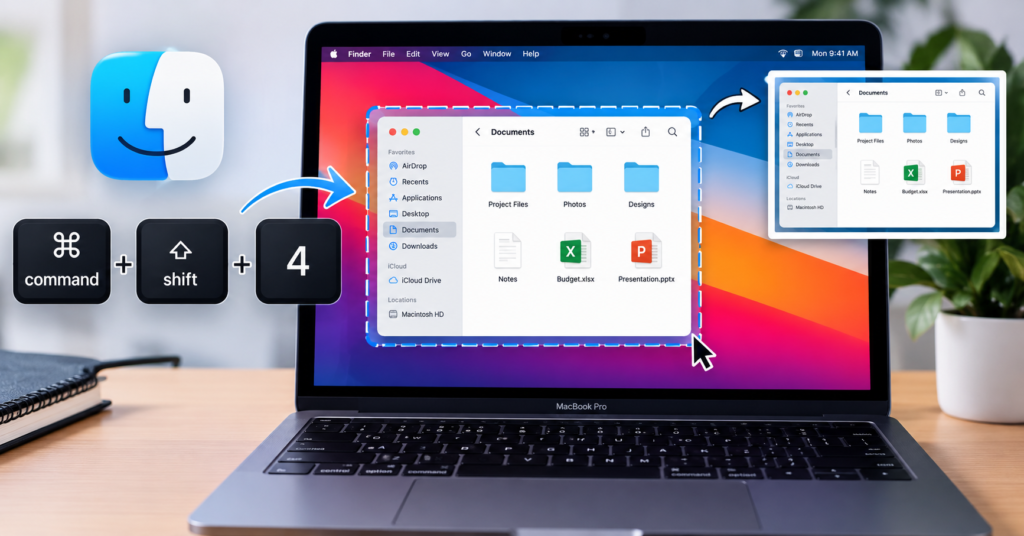
If you only need part of the screen, Command + Shift + 4 is more useful. After pressing this shortcut, your pointer changes into a crosshair. You can then click and drag over the area you want to capture.
When you release the mouse or trackpad button, macOS captures the selected area. This is one of the easiest ways to avoid capturing unnecessary information around the part of the screen you actually need.
How to Screenshot a Specific Window on Mac
Sometimes you may want to capture only one application window instead of the entire desktop. macOS provides a simple option for this.
Press Command + Shift + 4 first. Then press the Space bar. The pointer will change into a camera icon. Move it over the window you want to capture and click.
Your Mac will capture the selected window as a screenshot. This method is useful when you are preparing tutorials, sharing an application problem, or saving information from a particular program.
The screenshot may also include the window’s shadow and surrounding appearance. This can give the capture a cleaner look when you use it in documents or presentations.
How to Use the Mac Screenshot Tool
Another way to learn how to screenshot on Mac is to use the built-in Screenshot tool. Press Command + Shift + 5 to open the screenshot controls.
A toolbar will appear near the bottom of your screen. From there, you can choose whether to capture the entire screen, a selected window, or a selected portion of the display.
The same toolbar also provides screen recording options. This means you can use one built-in macOS tool for both screenshots and basic screen recordings.
The Screenshot tool is particularly helpful if you prefer clicking an option instead of remembering several keyboard shortcuts. It also gives you more control over screenshot settings.
How to Screenshot a Selected Area on Mac
If you only want to capture a particular section of your display, the selected-area method is usually the most convenient option.
Press Command + Shift + 4 and move the crosshair to the starting point of the area you want to capture. Click and hold the mouse or trackpad button, then drag across the content.
You can adjust the selection before releasing the button. When you are satisfied with the area, release the button to take the screenshot.
If you start selecting the wrong area, press the Escape key before releasing the mouse or trackpad button. This cancels the current selection and allows you to start again.
How to Screenshot on MacBook
The screenshot shortcuts work on MacBook models as well as other Mac computers. If your MacBook has a built-in keyboard, you can use Command + Shift + 3, Command + Shift + 4, or Command + Shift + 5 depending on what you want to capture.
The process is generally the same whether you are using a MacBook Air or MacBook Pro. The exact appearance of the Screenshot tool can vary slightly depending on your macOS version.
If you are using an external keyboard with your MacBook, make sure the Command key is mapped correctly. Keyboard layouts can sometimes affect where specific keys are located.
Where Are Screenshots Saved on Mac?
By default, screenshots taken on a Mac are usually saved to the desktop. This makes them easy to find immediately after capturing the screen.
The screenshot normally appears as an image file with a name that identifies it as a screen capture. You can open it, rename it, move it to another folder, or share it like any other image.
If your screenshots are not appearing on the desktop, you can check the Screenshot tool settings. Press Command + Shift + 5 and select the options available for saving screenshots.
You can choose another location for future screenshots if you prefer to keep your desktop organised. This is useful if you take screenshots frequently.
How to Copy a Mac Screenshot to the Clipboard
Sometimes you may not want to save a screenshot as a file. You may simply want to paste the captured image into an email, document, message, or image editor.
To copy a screenshot directly to the clipboard, hold the Control key while using the relevant screenshot shortcut. For example, Control + Command + Shift + 3 captures the entire screen and copies it to the clipboard.
For a selected area, use Control + Command + Shift + 4. You can then paste the screenshot into an application using Command + V.
This method is convenient when you only need the screenshot temporarily and do not want to create a separate image file.
How to Edit a Screenshot on Mac
After taking a screenshot, you can open the image and make basic changes using built-in Mac tools. You can crop the image, resize it, add annotations, or make other simple adjustments.
When a screenshot thumbnail appears after capture, you can click it to open editing options. If you leave the thumbnail alone, macOS will save the screenshot automatically according to your selected settings.
Editing can be useful when you need to highlight a particular part of the screen. You can also remove unnecessary areas before sharing the image with someone else.
How to Change Where Mac Screenshots Are Saved
If you take many screenshots, saving everything to the desktop can quickly become inconvenient. Fortunately, you can change the default screenshot location.
Press Command + Shift + 5 to open the Screenshot tool. Select Options and look for the location settings. You can then choose an available folder or another supported location.
Choosing a dedicated screenshots folder can make your files easier to organise. It can also keep your desktop cleaner, especially if you regularly capture images for work, study, or content creation.
What to Do If Mac Screenshot Shortcuts Do Not Work
If a screenshot shortcut does not work, first check that you are pressing the correct keys together. The Command, Shift, and number or symbol keys need to be pressed correctly for the shortcut to activate.
You can also open the Screenshot tool directly with Command + Shift + 5. If the tool opens, you can use its controls instead of relying on the keyboard shortcuts.
If screenshots still do not work, check your Mac’s keyboard settings and screenshot shortcut settings. A shortcut may have been changed or disabled.
Restarting your Mac can also resolve temporary software or keyboard issues. After restarting, test the screenshot shortcut again.
How to Screenshot on Mac Without a Keyboard
If you prefer not to use keyboard shortcuts, you can access screenshot features through the Screenshot tool. Press Command + Shift + 5 to open the available capture options.
You can then select the type of screenshot you want from the on-screen controls. This approach is helpful for users who find keyboard shortcuts difficult to remember.
The Screenshot tool also provides access to screen recording features, making it a useful central location for basic screen capture tasks.
Conclusion
Learning how to screenshot on Mac is simple once you know the main keyboard shortcuts. Command + Shift + 3 captures the entire screen, while Command + Shift + 4 lets you select a specific area. Command + Shift + 5 opens the full Screenshot tool with additional capture and recording options.
You can also capture individual windows, copy screenshots directly to the clipboard, edit captures, and change where screenshots are saved. These built-in features make macOS screen capture practical without requiring additional software.
Whether you use a MacBook for work, study, browsing, or everyday tasks, knowing these screenshot methods can save time and make sharing information much easier.
FAQs
How do I screenshot on Mac quickly?
The fastest way to capture the entire screen is to press Command + Shift + 3. The screenshot will normally be saved automatically to your desktop or your selected screenshot location.
How do I screenshot part of my Mac screen?
Press Command + Shift + 4, then click and drag over the area you want to capture. Release the mouse or trackpad button when the selection is ready.
How do I screenshot a window on Mac?
Press Command + Shift + 4, then press the Space bar. Your pointer will change to a camera icon. Click the window you want to capture.
What is the Mac screenshot shortcut?
Mac has several screenshot shortcuts. Command + Shift + 3 captures the entire screen, Command + Shift + 4 captures a selected area, and Command + Shift + 5 opens the Screenshot tool.
Where do screenshots go on Mac?
Screenshots are normally saved to the desktop by default. You can change the saving location through the Options menu in the Screenshot tool.
Can I copy a screenshot instead of saving it?
Yes. Hold the Control key while using a screenshot shortcut. The captured image will be copied to the clipboard, allowing you to paste it into a compatible application.
For more updates visit: DAILY FRONT

Other Articles

13 Reasons Why Complete Guide to the Netflix Series
Why Are Flags at Half Mast Today UK & US Flag Status

No Comment! Be the first one.